Create zoomable image from Deep Zoom Composer
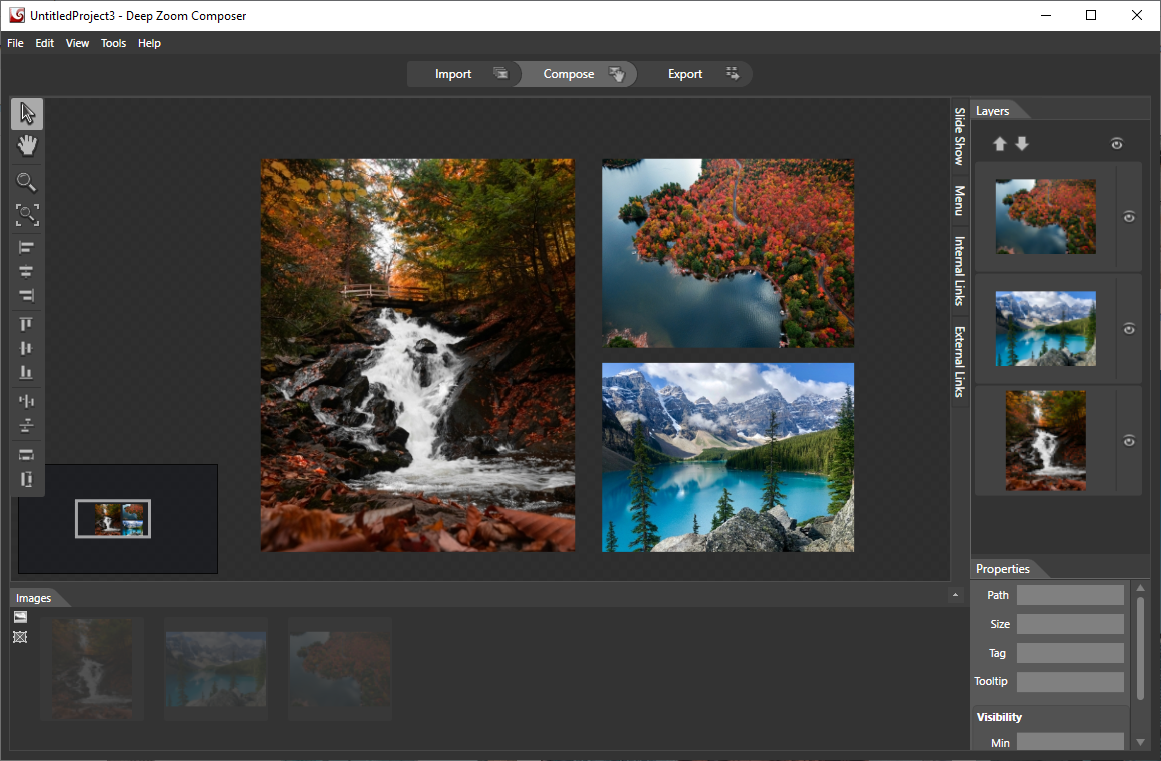
Photos by Marc-Olivier Jodoin, Derek Sutton, David McLenachan on Unsplash
July 2025: added hotspot, internal, and external link support in our template.
Microsoft Deep Zoom Composer allows you to create high resolution image compositions, that are built for smooth Zooming and Panning. With our template, you can display your composition through our viewer on your desktop or your website. It is is simple to use, just load in all your high resolution images and make your composition on screen.
Instructions
Before you start, make sure you have Deep Zoom Composer installed. If you haven't done so, you can download it from the Microsoft website (via Internet Archive).
- After purchasing our template, download and the template file.
- Copy the template file to the following folder:
C:\Program Files (x86)\Microsoft Expression\Deep Zoom Composer\Export Templates\Deep Zoom Navigation (Default) - In the above folder, rename the following files (this step replaces the original file with our file, while keeping the original copy as a backup):
-Test.htmltoTest_Original.html
-DZC_Zoomable_Template.htmltoTest.html
- Open Deep Zoom Composer, follow the on-screen instructions. In the Export tab (as shown below), select Export as a collection (multiple images).
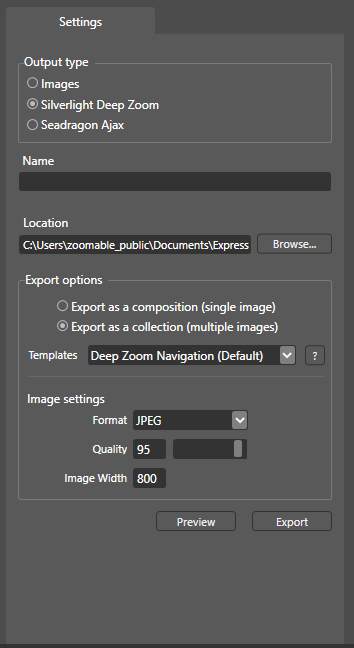
- Click Preview to see the result in the browser. DZC comes with a built-in web server tool which allows you to see the result right away.
- If you are happy with the result, click Export to create the zoomable files. Files will be stored in the folder specified in the Location field
Notes
To see the results outside of the Deep Zoom Composer, a web server tool is required. We recommend using Simple Web Server. It's simple to use and you can get it running in a few clicks.
When exporting, besides Export as a collection (multiple images), you can also use the other option, Export as a composition (single image). We recommend the first option for performance reason, but the other option is available for you to use if the former doesn't work.
Limitations
As summarized in the following image, the current version doesn't allow you to create the following elements:
- Slide Show
- Menu
Internal LinksSupported since July 2025External LinksSupported since July 2025HotspotsSupported since July 2025
Note: to create a link, make sure you create a hotspot first.
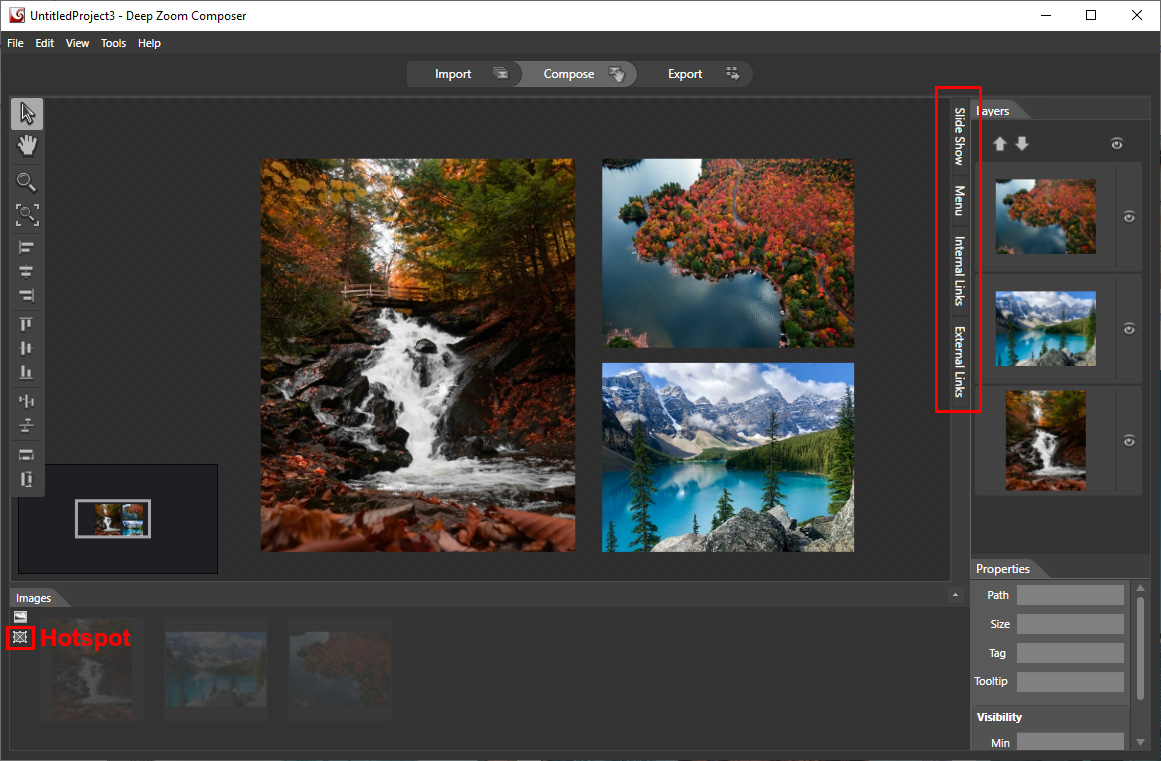
In other words, you could arrange the images in any way you want, but you can not add hotspots, links, slide show or menu on them. These elements may be available in future versions of our template.
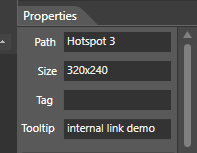
By default, the Composer generates a generic label when creating external and internal links. You can rename them by using the Name field for external links, and Tooltip for internal links. See screenshots below.
External Link Window
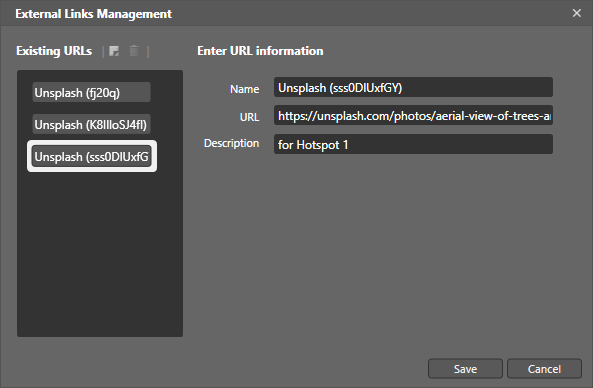
Tooltip tab (for internal links)
Ready to bring your zoomable images online?
Learn more in how to bring your zoomable images online.
Frequently Asked Questions
- What does Zoomable template do?
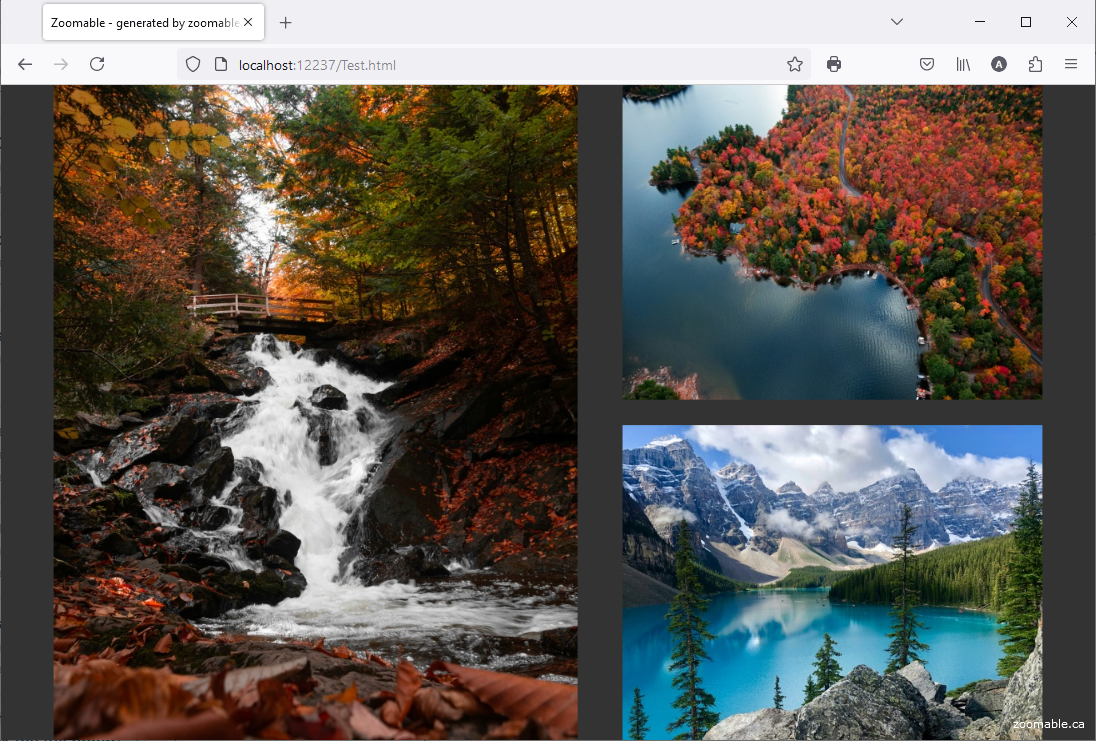
Microsoft Deep Zoom Creator (DZC) creates the zoomable images, and our template creates the viewer for displaying the images. See screenshots below for comparison.
The default installation of DZC comes with a proprietary viewer (Deep Zoom, a Silverlight based viewer) which no longer works. Our template uses OpenSeadragon which is a modern, JavaScript based viewer which works on all devices. If you are a developer, the viewer is customisable as the viewer is open-source.Without our template: With our template: 
- Does it work with files with accented characters?
Like the Image Composer Editor (also created by Microsoft), it might not handle files with accented characters very well. You should rename the files accordingly beforehand such as replacing accented characters with non-accented ones. - I created an internal/external link directly on the image and it doesn't do anything. Why?
At this moment, you must create a hotspot on top of the image first, then create a link on the hotspot. This limitation might be lifted in future versions of our template. - Can I customize the viewer?
Yes, as our template is using OpenSeadragon which is a web-based open source viewer. If you are a developer, please refer to the documentation on their website for details. - The viewer does not display the image after saving in DZC. Why?
Make sure the following settings are set properly in DZC before saving the image (see screenshot in Step 4, under Instructions):- Output type, Silverlight Deep Zoom is selected
- Export options > Templates, Deep Zoom Navigation (Default) is selected